Steps
Step 1: Login to Office 365 web mail
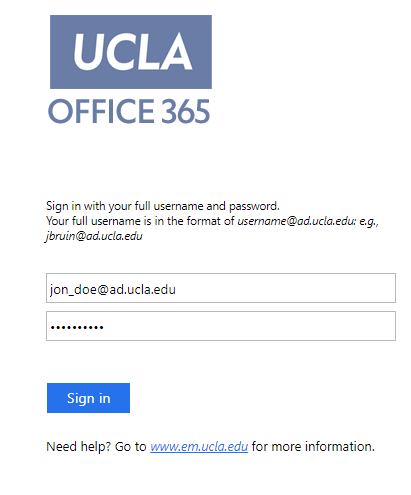
Login to Offic 365 (https://portal.office.com/).
Step 2: Select the mail tile
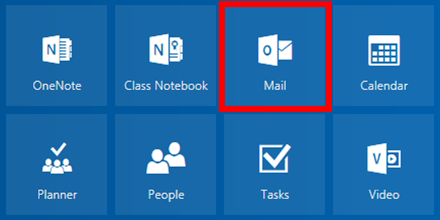
Click the Mail tile.
Step 3: Click settings
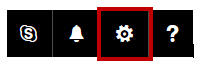
Click Settings (gear icon in the upper right-hand of your screen).
Step 4: Click mail
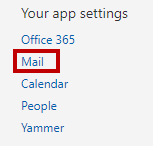
Under My app settings, click Mail.
Step 5: Click forwarding
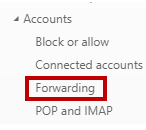
Under Accounts click Forwarding.
Step 6: Enter forward email
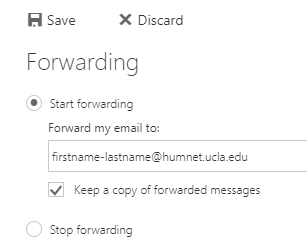
Under the Forwarding heading, select Start Forwarding and enter the email address where you want to receive all your UCLA messages. You have the option to keep a copy of all forwarded messages in your Office365 account. Note: if you do not select this, nothing sent to your firstname-lastname@humnet.ucla.edu email account will be saved in your university mailbox.
Step 7: Save changes
Select Save.